




When you study English online in a live language course, you need to have fast and efficient software to make communication and learning easy between you and your teacher.
Microsoft Teams is a platform that provides a collaborative environment for students to communicate, interact in discussions, and work on tasks together. This is why Microsoft Teams is the platform EC Live school uses for lessons and onlince courses.
It is available on multiple platforms, including Windows, macOS, Android, and iOS which means that you can join your live classroom on any device, either your mobile, laptop or tablet, allowing you to take your lesson wherever you are. With Teams, you can communicate with your teachers and classmates in real-time through chat, video calls, and regular voice calls. You have multiple ways to contact your teacher and fellow students for help, collaboration or fun.
You also get free access to Microsoft’s suite of tools, like Word, PowerPoint, and Excel – and you have access to these for the duration of your entire EC Live course, and an extra 3 month after you finish your online English language course.
Most importantly, Teams ensures the security and compliance for student data, with only the people allowed access to your virtual classroom set up by your teacher on Teams, no one without authorization can see attend your lessons, see your uploaded work or view recordings while you study English online. With all of these key points considered, Microsoft Teams is an excellent platform for any adult learning English online.
What are the key features of Microsoft Teams that you and your teacher will use during your online English language class?
Channels and Tabs: Channels on Microsoft Teams makes it easy to organize different groups of people. Channels are set up for each classroom according to English proficiency levels. You will be added to the appropriate channel for your English level by our EC Live Programme Manager after to complete the Placement test on MyEC. Tabs within channels are used to link documents and other resources by your teacher.
Chat Functionality: One-on-one or group chats are available for less formal communication or quick clarifications. Messages can include rich text, attachments, and emojis.
Video Meetings: Video conferencing features include screen sharing, breakout rooms, and the ability to record sessions for later review.
Homework and Tasks: Teachers assign the Pre-Lesson task and Post-Lesson task through Teams, and students can submit it all within their classrooms Team chat.
File Sharing and Collaboration: Students can edit documents together in real-time, with all changes being tracked for the teacher to review and give direct feedback.
How to Create a Teams Account
Before you can enter your EC Live classroom, you will need to have a Microsoft teams account.
Here are the steps to create one:
Step 1: Go to the Microsoft Teams webpage and click on the profile icon at the top-right corner of the screen.
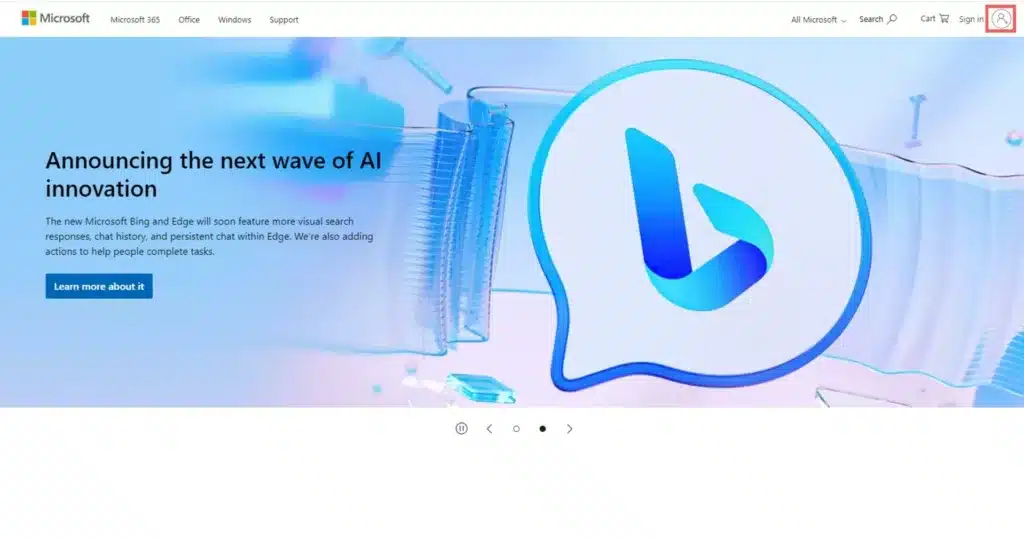
Step 2: In the “Sign in” page that appears, click on the “Create one!” link to set up a new account.

Step 3: On the “Create account” window, enter your email address (preferably a work email address) and click on the “Next” button.
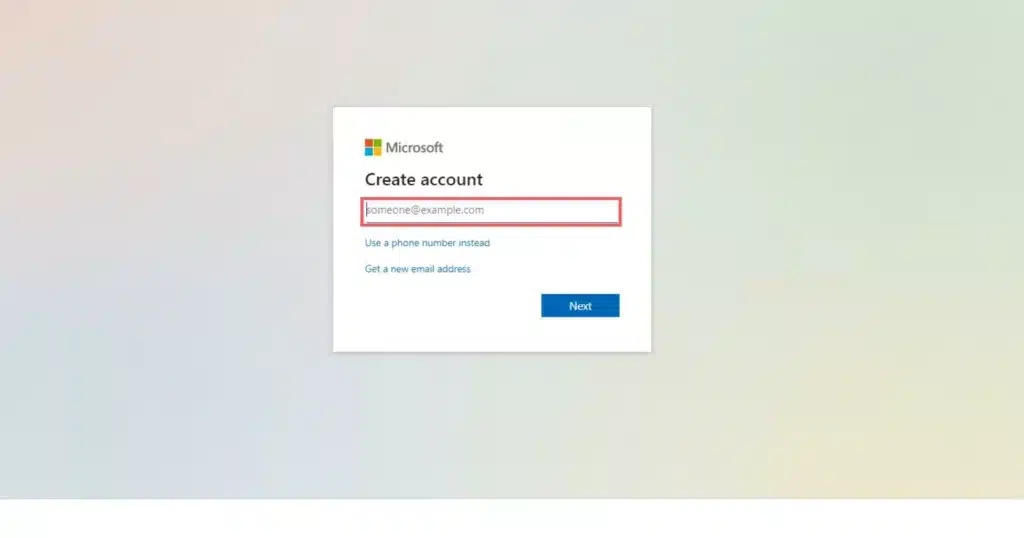
Step 4: Follow the on-screen instructions to create a password and enter your details on the pages that follow.
Once you’ve entered all your details and verified your email, visit the Microsoft Teams homepage to begin using the Teams web app.